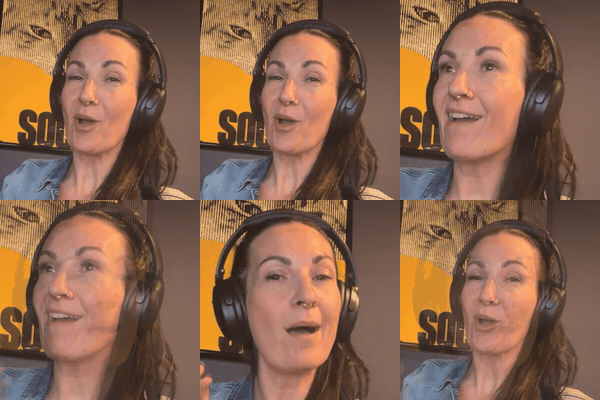
We've made well over a hundred lifestyle images for Good Livin' this way. Website, emails, ads, our wholesale media kit.
The secret: you train it. Like a new creative director who's never met you. Takes a few sessions, then it just gets you.
Step 1: Upload your brand board
Give Claude your brand guidelines: logos, fonts, colours, photography direction, the vibe. Ours is a PDF from our brand designer. If you don't have one, a page of screenshots and notes works too.
Here are my brand guidelines [attach PDF or images]. Read all of it and turn it into a brand rulebook you check before anything you make for me: logo rules, exact hex colours, fonts and where each one is used, photography direction, voice, and things we never do. Save it so you use it automatically in every chat from now on. Then tell me anything that's unclear or contradicts itself.
Step 2: Sync your Pinterest board
Your Pinterest board is your mood. I had Claude open our board in my logged-in browser, go through every pin (259 of them!), save each one as a reference and make contact sheets so we could talk about them by number.
Here's my Pinterest board: [link]. Go through every pin and save each image as a reference with a number. Then describe the vibe in 10 bullet points: lighting, colours, crops, ages, settings, attitude. These are mood references only. We never copy or edit other brands' images.
That last line matters. The pins are inspiration. We make new photos inspired by them, with our product in them.
Have a peek at our board
This is the actual Good Livin' board Brett and I pin to. Have a scroll, give it a follow, and steal the vibe for your own mood board. It's where every one of our images starts.
Here's what Claude pulled out of it, and now uses in every image:
- 1970s and 80s everything: film grain, saturated colour, a little kitsch
- Hard flash or hard sun with deep shadows
- Tight, unexpected crops that cut people off
- Attitude over smiles. Deadpan, a bit absurd, never posed
- Real women of every age, especially the ones who clearly have their life together
- Bold flat colour backdrops and graphic, poster-y moments
And here's how that vibe shows up in ours
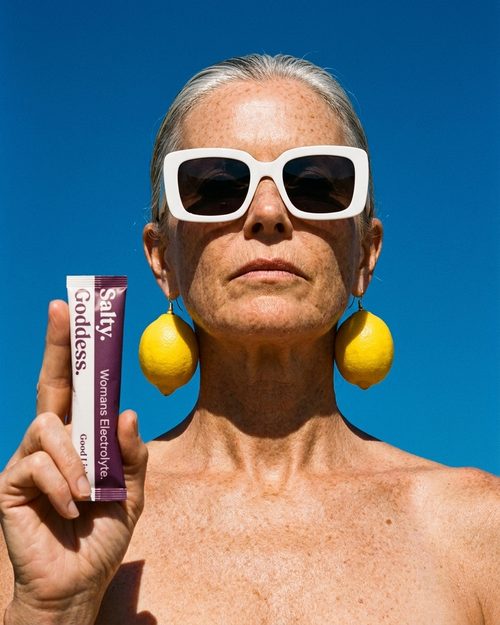
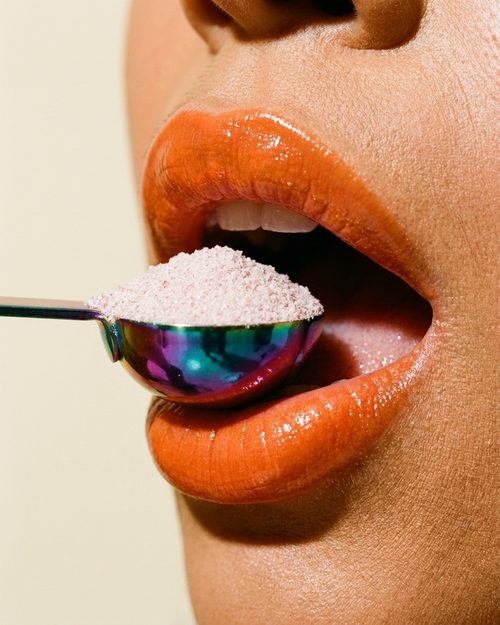
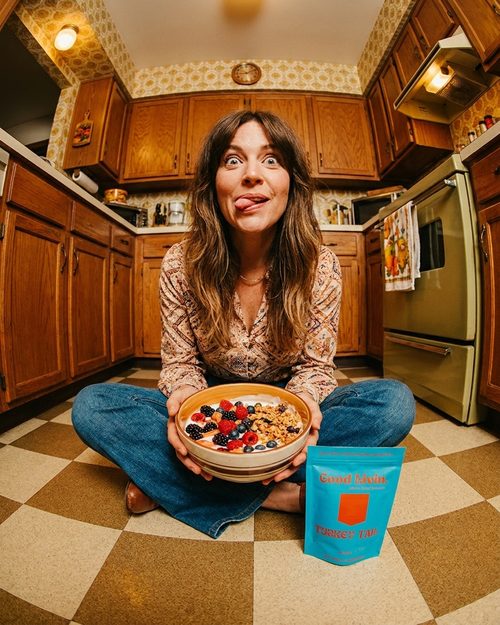
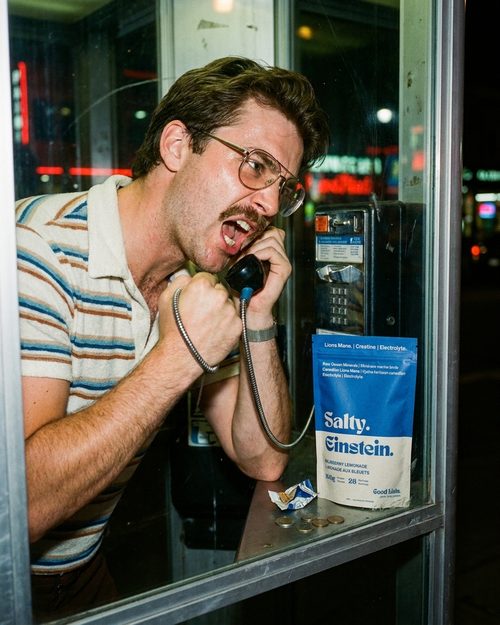
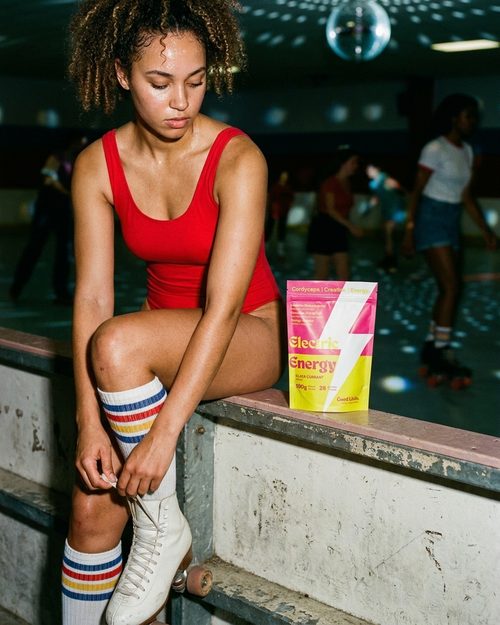
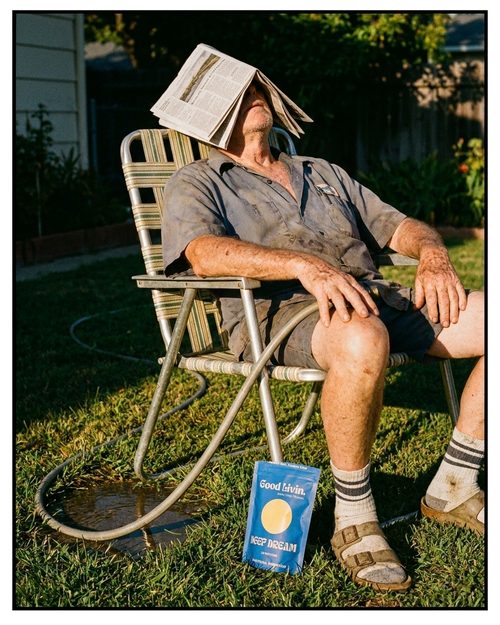
Every one of these came from Claude + Gemini working off our board, with our real packaging. No photoshoot.
Step 3: Hook Claude up to Gemini
Claude is the creative director. Gemini (Google's image model) is the camera. Claude writes the prompts, sends your product photos along as references, and saves what comes back.
- Get a Gemini API key from Google AI Studio (it's pay as you go, per image).
- Give the key to Claude and ask it to set up image generation for you.
- Top up credits before a big batch. We ran out halfway through one. Rookie move.
Step 4: Train it on your products
This is where most AI product images go wrong. The AI makes up packaging. Wrong colours, made-up words, a logo that's almost yours. Shut that down on day one.
- Upload your original label files. The actual print files from your designer. When we changed our Head Ease pouch, I uploaded the new packaging PDF and Claude swapped it into every old image.
- Upload a few real photos of each product. Front, angle, in a hand. These go to Gemini with every request.
- Tell it the real size. Our pouches are 5.5 by 8 inches, about a paperback. Before I said that, they showed up tiny, giant, and tucked into places a pouch could never fit.
- Make the packaging rule non-negotiable. See the prompt below. Say it once and have Claude save it.
Rule for every image, forever: use my exact packaging from the reference files. Same shape, proportions, colours, graphics and words, letter for letter. Never invent packaging, never redesign it, never add text that isn't on the real pack. If you're not sure what the pack says, ask me. The product is [size] and should only appear where a real one could actually sit.
Pro tip: one Drive folder for every product
Make a Google Drive folder with a subfolder for each product. Put everything in it: pack shots, real photos, label files, and every lifestyle image you love. Claude pulls its references from there, and you'll thank yourself later.
Because when a store says yes and asks for images? You just share the link. Ours became our wholesale media kit: every product with photos, a description, how to use it and ingredients, all in one place.
Step 5: Recreate the vibe with your product
Using pin #[number] as the mood reference and my [product] photos as the product reference, create a brand new photo in that vibe with my product in the scene. Vertical 4:5 for Instagram. Follow the brand rulebook and the packaging rule.
Batch it, then give feedback in one go
- Pilot 3. Make three, look at them together, and fix the vibe before you make more.
- Batch 20 at a time. Once you like the style, have Claude make a batch of 20 while you get on with your day.
- Review them on one contact sheet. Ask for every image on one numbered sheet. Then give notes in one message: "4, 9 and 13 are perfect. 6 looks fake. Redo 11 with an older woman."
- Keep the winners. Have Claude drop the ones you love into a favourites folder in Drive. Share that with your team, your designer or your stores.
Make a batch of 20 new images for [products], each inspired by a different pin on my board. Follow my brand rulebook, the packaging rule and my saved image rules. Show me all 20 on one numbered contact sheet when you're done, then upload the full-size images to a new folder in my Google Drive called [name].
Step 6: Correct it like a bestie
This is the training. It really does listen, but you have to tell it. These are actual things I said:
- "This doesn't look real." Now every prompt asks for real skin, pores, stray hairs, sweat, fabric creases and a 35mm film snapshot feel.
- "Too Sears catalogue. Bring back the edgy vibes." Now nobody smiles at the camera or holds the product up. Hard flash, deep shadows, tight crops, and the product is just casually there.
- "The vibe is right but it needs to be real." Absurd and funny is great. Physically impossible is out.
- I loved the older women it made, so I said lean in. Then later: "they don't all need to be older people, some mix is good."
- Pouches the wrong size, tucked into socks. I gave it the real size and where a pouch can actually sit. Fixed.
- "Those aren't fisheyed." Some looks take a few rounds. Keep going until it's the thing in your head.
Every time I corrected it, I asked Claude to turn the note into a rule it saves. Now our image rules have little named sections it adds to every prompt:
- REAL: looks like an actual photograph, believable scene, correct anatomy
- EDGE: 70s-80s editorial attitude, hard flash, film grain, product incidental
- KEEP: product matches the reference exactly, no invented text
- SIZE: real-world scale, only where a real one could sit, always clean and crisp
- AVOID: plastic AI skin, catalogue lighting, posed smiles, people presenting the product
That note I just gave you: turn it into a short rule and add it to my saved image rules, so you apply it to every image from now on without me having to say it again.
Step 7: Check every single image
AI still sneaks stuff in. Things we've caught: other brands' logos on a motorbike, an ashtray nobody asked for, thin borders, packaging text that's slightly off. Zoom in before anything goes public.